 How-to
7 Steps to Watch Across Devices Without Extra Fees
Last Updated: November 21, 2026
Quick Summary
You can watch across multiple devices on BINGE Movies & TV by signing in to the same account on each screen, so a film can move from your Smart TV to your phone or tablet. Check your plan's concurrent stream limit first, since some devices need a short activation step.
- Check the number of concurrent streams allowed on your plan from your account page.
- Install the app on your Smart TV, Chromecast, or Apple TV and sign in with your account.
- Use the same account on every phone and tablet to keep your viewing in sync.
- Sign out of devices you no longer use, since background sessions can use up a stream.
- Save titles through downloads to watch offline, and clear watched titles to free space.
Table of Contents
- How Cross-Device Viewing Works on BINGE Movies & TV
- Step 1: Check Your Streaming Subscription Device Limits
- Step 2: Set Up Your Smart TV, Chromecast, or Apple TV
- Step 3: Install the App on Phones and Tablets
- Step 4: Use Streaming Service Downloads for Offline Viewing
- Step 5: Manage Streaming Subscriptions to Avoid Duplicate Charges
- Step 6: Switch Devices Without Losing Your Place
- Start Watching on Every Screen You Own with Your Free Trial
- Frequently Asked Questions
How Cross-Device Viewing Works on BINGE Movies & TV
Watching across multiple devices is one of the simplest ways to get more from a streaming subscription. At BINGE Movies & TV, we built the service so you can start a film on your Smart TV, pick it up on your phone, and finish it on a tablet without paying a separate fee for each screen. Our curated library of independent and festival films can be streamed across those devices, so your viewing can follow you from room to room.
Some devices need a short activation step, and limits may apply to how many screens can stream at once. This guide walks through the steps to set everything up and check your limits.
Viewing across devices works best when you know the rules before you start.
Step 1: Check Your Streaming Subscription Device Limits
Start by confirming how many devices can stream at the same time under your plan.
Open your BINGE Movies & TV account page and review your plan details. Check the number of concurrent streams allowed and the supported devices listed there. If you share your login with a household, decide in advance who watches on which screen so you are not competing for the same slot.
Watch out: a device that stays signed in in the background can use up a stream even when nothing is playing. Sign out of devices you no longer use.
Before you set up your screens, here is a quick reference for the key points covered in this step.
| Check | What to look for | Why it matters |
|---|---|---|
| Concurrent streams | Number allowed on your plan | Limits how many screens play at once |
| Supported devices | Listed on your account page | Confirms your screens are covered |
| Shared login | Agree who watches where | Avoids competing for the same slot |
| Background sessions | Signed-in devices you no longer use | Can use up a stream while idle |
Step 2: Set Up Your Smart TV, Chromecast, or Apple TV
Big-screen viewing is where cross-device setup pays off most. Install the BINGE Movies & TV app on your Smart TV, Chromecast, or Apple TV, then sign in with your account.
Check that your internet connection can handle streaming on your TV before you begin.
Step 3: Install the App on Phones and Tablets
Download BINGE Movies & TV on your phone or tablet, then sign in with the same account.
Keep the same account on every device.
Step 4: Use Streaming Service Downloads for Offline Viewing
Downloads let you watch without an internet connection, which is useful when you are travelling. Find a title you want to keep and save it to your device.
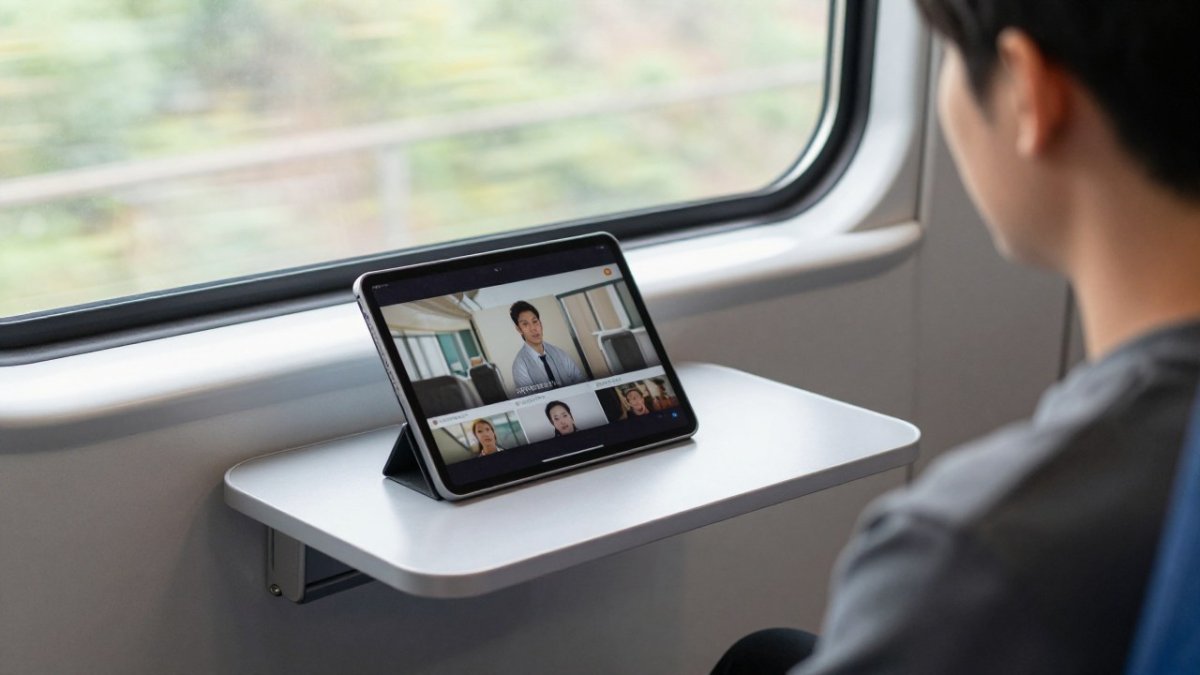
Downloads use space on your device, so clear older titles you have already watched.
Downloads are a practical answer to offline viewing while travelling.
Step 5: Manage Streaming Subscriptions to Avoid Duplicate Charges
A short monthly review of your streaming subscriptions can help you spot charges you no longer need.
Start by listing every streaming service you pay for and checking your bank or card statement to see where each charge comes from.
Use one account across all your devices.
Finally, keep a simple list of your subscriptions and their renewal dates, and review it periodically.
Step 6: Switch Devices Without Losing Your Place
Keeping the same account and an up-to-date app on each device helps your viewing move smoothly between screens.
Confirm both devices are signed in to the same account.
Keep the app updated on both devices.
If playback buffers or drops quality, check your network connection, for example by moving closer to your router or pausing other large downloads on the network.
For shared devices in a household or a guest room, sign out when you finish rather than leaving the account active.
Start Watching on Every Screen You Own with Your Free Trial
Ready to try cross-device viewing yourself? Start your 7 day FREE Trial with BINGE Movies & TV and test the setup on the screens you already own. Our library of curated independent films is added to daily, so there is always something new to discover on your phone, tablet, or big-screen TV.
Set up your devices once, check your limits, and you can move between screens on one account.
Frequently Asked Questions
Can one BINGE subscription be used on more than one device?
Yes. BINGE Movies & TV is built for multi-device viewing, so you can stream on Smart TVs, Chromecast, Apple TV, phones, and tablets from the same account. Device limits depend on your plan, so check your account settings for details. Signing in on a new device is done by logging in with your account credentials.
How do I download films to watch offline on BINGE?
Open the BINGE app on your phone or tablet, find the title you want, and select the download option before you leave a Wi-Fi connection. Downloaded titles stay available for offline viewing, which is useful on flights, trains, or anywhere with weak coverage. Check the app for current download options on your device.
How can I avoid paying for duplicate streaming subscriptions?
Before adding another service, list the streaming accounts you already pay for and note which titles you actually watch on each. For current prices, visit the BINGE Movies & TV website. Reviewing your subscriptions periodically and cancelling any you no longer use is a simple way to keep track of them.
Can I switch between devices without losing my place in a film?
BINGE is built to let you move between devices. Sign in on another device with the same account to continue watching.